
Email accounts
Email addresses at your own domain, like you@yourbusiness.com, for you and the people you work with. Read and reply on your phone, your computer, or the web.
The short version
- Each account is $4 a month ($38.40 a year if you pay yearly) with 10 GB of mail.
- Add them on the Email accounts page, under Emails in the sidebar.
- They work in the Mail app on iPhone and Mac, Outlook, Gmail, Samsung Email and on the web.
- Mail to your domain keeps going where it goes today until you switch it over.
- You don't need a website to have email accounts. They are bought separately.
Email accounts are not Email campaigns
Email campaigns sends newsletters to your contact lists. Email accounts are inboxes: an address someone reads and replies from, like any other email. You can have either one, or both.
Adding an account
On the Email accounts page, choose Add email account. Type the part before the @ and pick the domain after it. Then choose who will use it:
- Me: you choose its password now, and it's ready to put on your phone.
- Someone else: give their personal email address. We send them a setup link to choose their own password and put the account on their phone. The link works for 7 days, and they don't need a Spandrel login.
The first account at a domain also turns that domain on for email, so there is no separate step. You can add a domain on its own too, with Add a domain.
Owners and admins add and delete accounts. The person an account belongs to can change its name and password.
Your domain's records
Email needs a few DNS records on your domain: where mail is delivered (MX), which servers may send for you (SPF), a signature that keeps your mail out of spam (DKIM), and two names that let mail apps find their settings by themselves.
- A domain you bought here: we add every record for you. There is nothing to type.
- A domain from somewhere else: open the domain from the Email accounts page and go to DNS records. Add each one where your domain's DNS is managed, usually the company you bought it from. Copy all records puts them in a message you can send to whoever runs it. We check each record and show when it's found.
A domain can only have one SPF record. If yours already has one, change it to the value we show rather than adding a second.
Switching your mail over
Until you switch, your new accounts can send but don't receive. Mail to your domain keeps going wherever it goes today.
- No email at your domain today (a domain you bought here): it switches by itself as soon as it has an account, since nothing would be lost.
- Email with Google, Microsoft or anyone else: nothing changes until you say so. Add accounts for everyone first. For a domain you bought here, choose Switch over in the domain's settings: it first names any address that gets mail today and has no account here, because mail to it would bounce afterwards. For a domain from somewhere else, change its MX record where its DNS is managed.
Switching moves new mail only. Mail already in your old service stays there, so keep that account open until you've moved anything you want to keep.
Putting an account on a phone or computer
Open the account and choose Set up a phone. Pick the device and the app, and follow the steps for that pair.
- iPhone, iPad and Mac (the Mail app): download the setup profile and install it. You type only the password. On your own account you can also scan a code with your phone to open the setup there.
- Outlook, Gmail and Samsung Email: type the address and password. If the app shows server names, check both are mail.b.hostedemail.com.
- Outlook on a phone: keep Advanced settings switched on and replace both server names with mail.b.hostedemail.com. Outlook fills in its own guess, and its guess doesn't work.
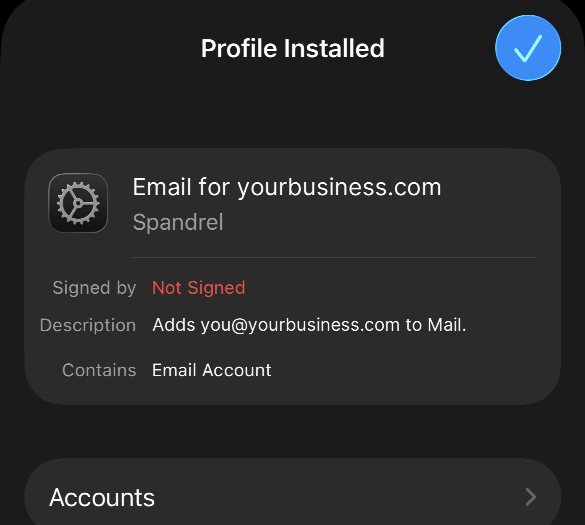
On an iPhone, with the Mail app:
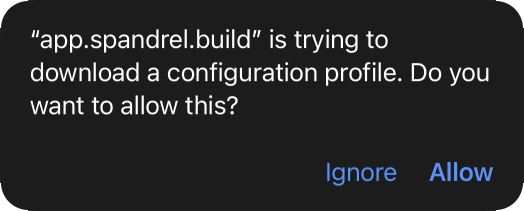
Tap Add to iPhone or iPad, then Allow, then Close.
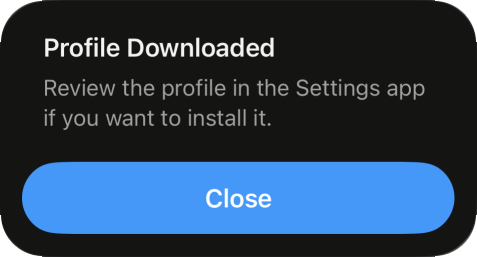
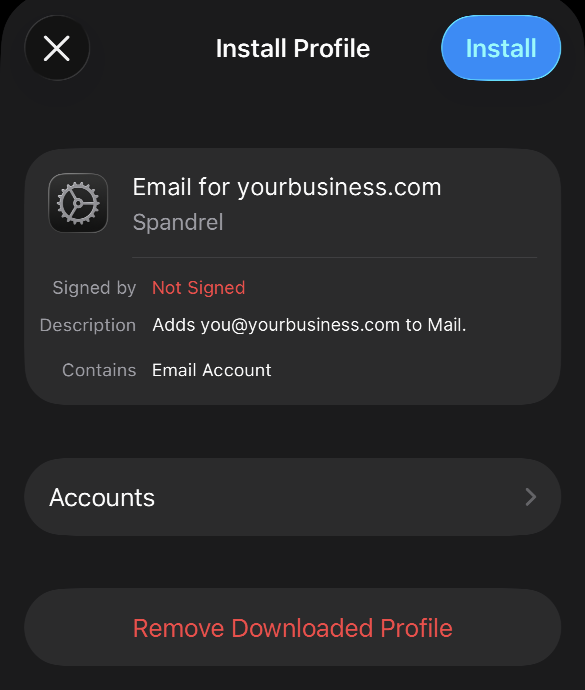
Open Settings, tap Profile Downloaded near the top, then Install.

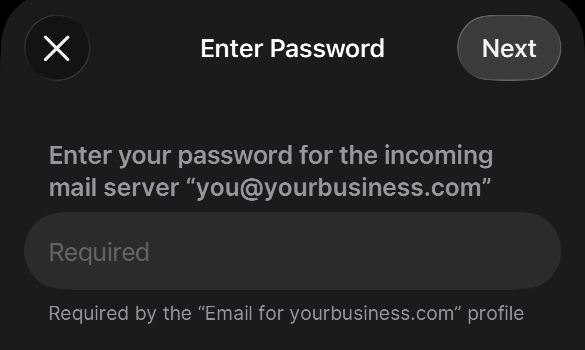
Type the email password. The account is in the Mail app.
Any other app takes these settings:
- Username: the full email address
- Incoming (IMAP): mail.b.hostedemail.com, port 993, SSL
- Outgoing (SMTP): mail.b.hostedemail.com, port 587 with STARTTLS, or 465 with SSL
An account set up through its profile or setup link shows as Set up on the Email accounts page. If you typed the settings into an app yourself, open the account and choose I've set it up.
Reading mail on the web
Your own account has Open inbox, which signs you straight into webmail. The sidebar shows how many unread messages are waiting.
Open inbox is only for your own account. An owner can reset someone's password, but can't quietly read their mail.
Storage
Each account holds 10 GB of mail. When one reaches 80% and again at 95%, we email the person who uses it and whoever manages billing. Once an account is full, new mail to it can't be delivered.
Deleting old messages with large attachments frees the most space. Look in Sent too, then empty the Trash, because deleted mail counts until it's gone from there.
What it costs
- Adding an account is charged now, for the rest of your billing period.
- Deleting an account deletes it and all its mail right away. Its charge comes off at your next renewal, and until then you can add another account in its place at no charge. Places you've paid for and haven't used show on the Email accounts page as ready to set up.
- Your subscription, under Billing, shows your accounts beside everything else, and what each period costs.
- Accounts included on your account by us are listed as Included, with the date they end if they do. After that, they're added to your subscription.
When accounts are deleted
Deleted mail can't be brought back, so these never happen without warning. The person who uses each account and whoever manages billing are emailed when a date is set, a week before it, the day before it, and when it happens.
- You remove email accounts in Your subscription: they're deleted at your next renewal.
- You cancel your subscription: they're deleted when it ends.
- A payment fails: they keep working for 30 days from the first failed payment. Update your card before then and nothing is deleted.
- Accounts we included end and you don't have a plan: they keep working for 30 days, then they're deleted unless you choose a plan.
If you close your account, email keeps working for 30 days so everyone can move their mail, then it's deleted. The email confirming the close gives the date.
To keep a copy of the mail, download it in your mail app or move it to another account before the date.
Removing a domain
Once a domain has no accounts, open it and use Remove. For a domain you bought here, the email records come out of its DNS and your website is untouched. For one from somewhere else, take the records out where its DNS is managed, and point its MX record somewhere else if mail still comes here.